Bluetooth Button Setup Guide
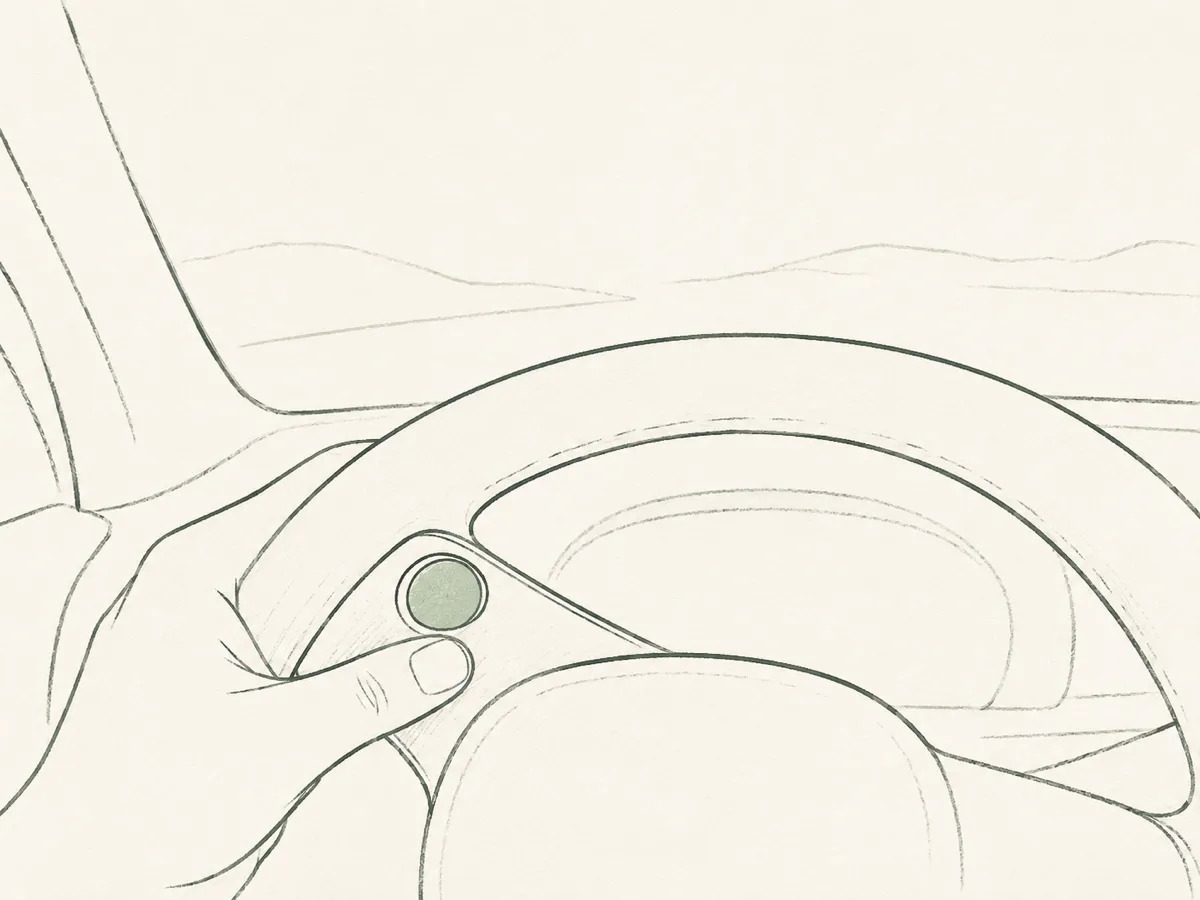
Hands-free support when you need it. The Bluetooth button lets you activate LobeDrive without touching your phone. Safer, faster, and with zero distraction.
Note: The Bluetooth button is optional. The app works fully without it using the in-app button. Using a mobile phone while driving may be restricted or prohibited by law. A physical button can help you activate LobeDrive without picking up or looking at your mobile phone.

Before You Start
You'll need:
• Your Bluetooth button (any standard Bluetooth remote button)
• Your smartphone with Bluetooth enabled
• The LobeDrive app installed
• 5 minutes to complete pairing
Step-by-Step Pairing
Enable Pairing Mode on Your Button
Press and hold the button on your Bluetooth remote for 3–5 seconds until the LED indicator starts flashing (usually blue or alternating colors). This means the button is ready to pair.
Open Bluetooth Settings on Your Phone
iOS: Settings → Bluetooth → turn Bluetooth ON
Android: Settings → Connected devices → Bluetooth → turn Bluetooth ON
Select Your Button from Available Devices
Your button should appear in the list of available devices (often named "BT Remote", "Media Button", or similar). Tap it to connect. You may see "Connected" or "Paired" confirmation.
Open the LobeDrive App
The app will automatically detect the button after the first press. No additional in-app pairing is needed: just press the button once while the app is open.
Connect Your Car's Bluetooth Audio
Pair your phone with your car's Bluetooth system (if not already connected). This ensures LobeDrive's audio messages play through your car speakers. In your car: Settings → Bluetooth → select your phone → Connect.
Verify Your Setup Works
Test It Now
Press your Bluetooth button. You should hear a LobeDrive message through your car speakers. The app's home screen should show "Bluetooth button connected" in green.
Connection status indicators in the app:
- Connected: Button detected and working
- Searching: Waiting for first button press
- Not connected: No button activity detected
Troubleshooting
Button won't enter pairing mode
- Check if the button has battery power (replace battery if needed)
- Hold the button longer (some buttons require 5–10 seconds)
- Consult your button's user manual for specific pairing instructions
Button pairs but doesn't trigger the app
- Make sure LobeDrive is running (open the app)
- Check that Bluetooth permissions are enabled for LobeDrive in Settings → LobeDrive → Bluetooth
- Try disconnecting and reconnecting the button in your phone's Bluetooth settings
- Restart the app and try again
No audio playing through car speakers
- Verify your phone is connected to your car's Bluetooth audio system
- Check your car's audio source is set to "Bluetooth" (not FM, USB, etc.)
- Increase phone volume and car volume
- Test by playing music from your phone. If that works, LobeDrive audio will too
Connection drops frequently
- Make sure the button is within range (typically 10 meters / 30 feet)
- Replace the button's battery if it's low
- Forget the device in Bluetooth settings and re-pair from scratch
- Close other Bluetooth-heavy apps that might interfere
App shows "Not connected" even after pairing
- Press the button once while the app is open; the app detects the button on first press
- Wait up to 30 seconds after pressing for the status to update
- Check that the button is still paired in your phone's Bluetooth settings
Still having issues?
- Visit our Support page for additional help
- Remember: You can always use the in-app button. LobeDrive works fully without Bluetooth
Ready to Drive Safer?
Your Bluetooth button is set up and ready. Now every press is a conscious choice for clarity and control.
Back to Home